Install the official TV app and link your account. Free can run the app; Proton says streaming support requires a paid plan. A supported app does not guarantee a title, catalog or service will play through a VPN.
Proton VPN
Proton is the documented example. No purchase is required to read the guide; Free and paid feature scope differs. Image sources.
SEE THE CONTROLS. FOLLOW THE STEPS.
Follow the setup steps.
Android TV / Google TV · Android 8+ · 3 steps
Install the official TV app and link your account. Free can run the app; Proton says streaming support requires a paid plan. A supported app does not guarantee a title, catalog or service will play through a VPN.
Documentation checked 2026-11-09. Source-based walkthrough; we have not deployed or tested this connection. Pictures are labelled by origin. Publisher screenshots can show older interfaces; use the linked current documentation when your version differs.
Version scope: Proton’s current Android TV documentation requires Android 8 or later. Exact app build and TV firmware are not captured. This is not the Fire TV or Apple TV workflow, and an older Chromecast without Google TV cannot run this app.
Before you start
Check that the device runs Android TV or Google TV with Android 8+.
Have your own Proton account and a trusted second device for sign-in. Use the official TV app store listing; do not follow a code supplied by a stranger.
Use your own authorized account and configuration. Keep private keys, QR codes and sign-in codes out of shared pictures.
0 of 3 steps marked complete
Checkmarks help you follow the guide; they do not verify a connection. They reset when you reload.
STEP 01
Install on the TV itself
Find Proton VPN in the TV’s app store and open it. Confirm the supported OS before installation; a phone app, Fire TV guide or older Chromecast flow is not interchangeable with this one.
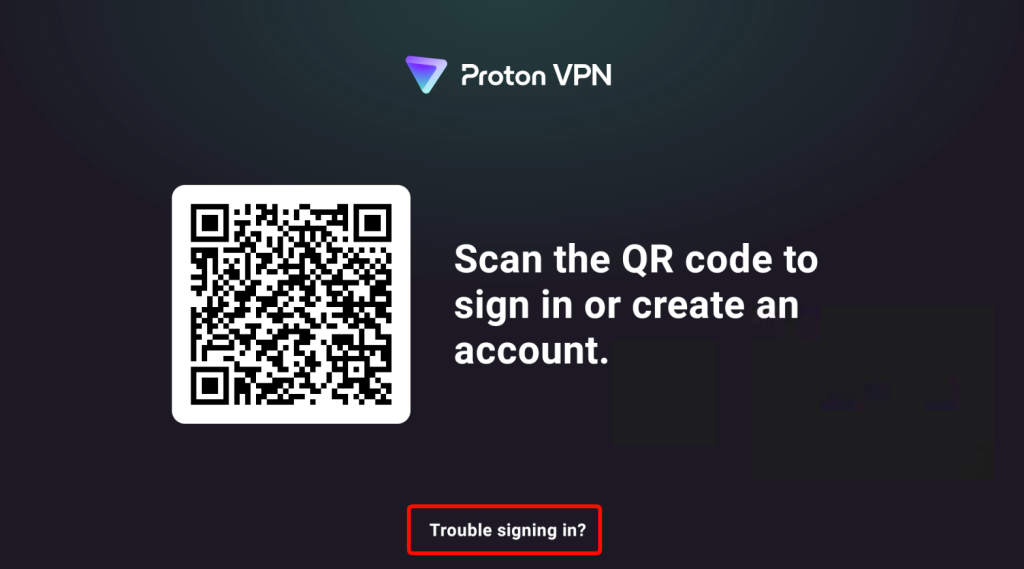
Use the app’s QR sign-in, or choose Trouble signing in? for the displayed code. On your trusted second device, type protonvpn.com/tv and enter the code shown on your own TV. Verify the address before signing in.
What you should see
The account links to this TV. Never put a real code in a public screenshot.
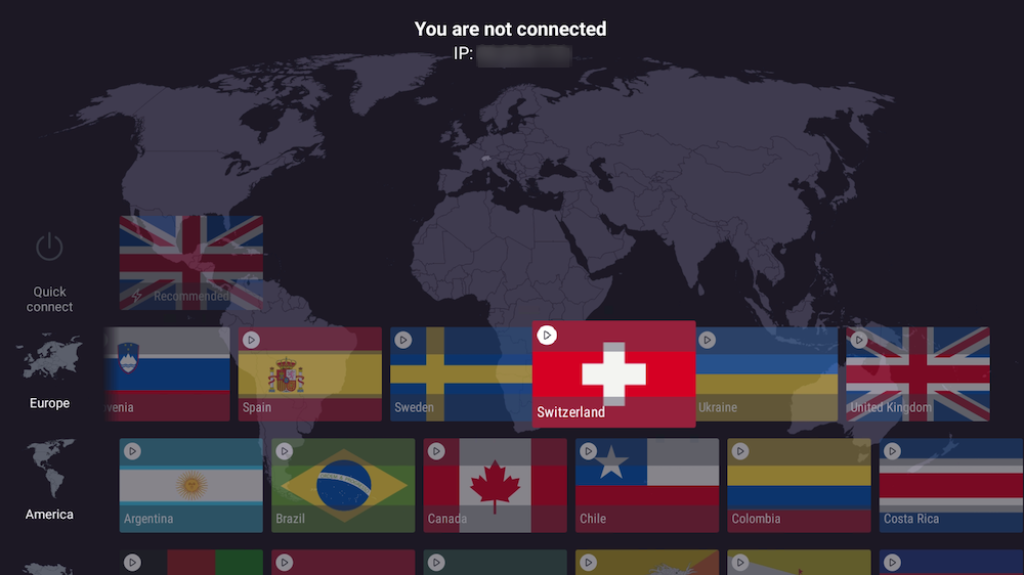
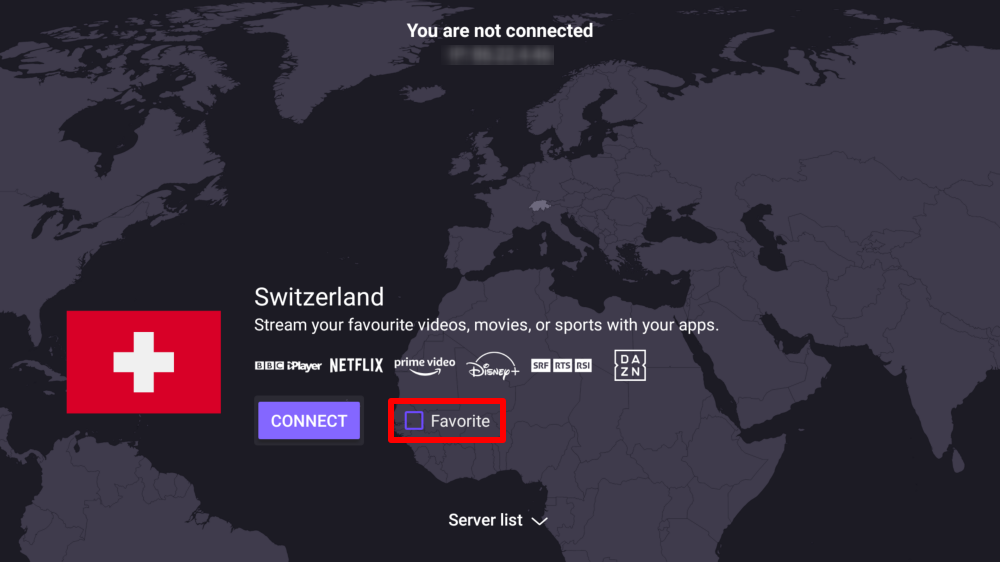
Choose an available connection for your plan. Confirm the app connects before trying the TV service. If a service rejects VPN use, follow its rules rather than treating installation as a promise of access. Find the Quick connect entry used to disconnect.
What you should see
Connection state and actual playback are separate checks.
Check connection, intended use and disconnect separately. Netflix states VPN use has title restrictions and is unsupported for ad-supported viewing or live events; a paid VPN does not remove those limits.
The app matches the TV platform and supported OS.
The account is linked using your own displayed code.
You checked connection separately from playback and service rules.
You can disconnect and know whether Auto-connect is enabled.
If it does not work
First separate an account-link failure, a network failure and a streaming-service restriction.
No place to enter the TV code
Use protonvpn.com/tv on the second device, including /tv, rather than the main homepage.
Ethernet drops when connecting
Proton documents an Android TV firmware issue. Check the TV’s firmware updates or try Wi-Fi; do not infer the VPN subscription is incompatible from this symptom alone.
VPN connects but video does not play
Confirm your VPN plan and the streaming service’s VPN rules. Do not cycle countries to promise access; Netflix has plan and live-viewing restrictions.
Stop or roll back deliberately
Open Proton VPN on the TV and use Quick connect to select the currently connected country and disconnect. Turn off Auto-connect if you enabled it and want the TV to remain disconnected. Check the app state before resuming ordinary viewing.
 Proton VPN
 (opens in a new tab)
 (opens in a new tab)
 (opens in a new tab)