Import an authorized client profile and check the intended client-device routing. This does not flash firmware, build a server or certify a router. An ISP router’s VPN-server label does not establish WireGuard-client support.
Import an authorized client profile and check the intended client-device routing. This does not flash firmware, build a server or certify a router. An ISP router’s VPN-server label does not establish WireGuard-client support.
Documentation checked 2026-11-09. Source-based walkthrough; we have not deployed or tested this connection. Pictures are labelled by origin. Publisher screenshots can show older interfaces; use the linked current documentation when your version differs.
Version scope: This guide deliberately targets the 4.8 dashboard. Manual profile upload follows the vendor’s 4.7+ client instructions. Firmware 4.7 and earlier have a different kill-switch interface; later versions can differ. Confirm the exact model and installed firmware before using these controls.
Before you start
Confirm your GL.iNet model supports the intended firmware and WireGuard client. Do not upgrade or flash firmware merely to match this example.
Keep local admin access and record the current mode/rules before editing. Obtain a device-specific .conf and arrange a maintenance window: router changes can affect every connected client.
Use your own authorized account and configuration. Keep private keys, QR codes and sign-in codes out of shared pictures.
0 of 3 steps marked complete
Checkmarks help you follow the guide; they do not verify a connection. They reset when you reload.
STEP 01
Import the authorized client profile
In the local admin panel open VPN → WireGuard Client. Choose Add Manually, name the group, upload the authorized .conf and apply. Keep credentials off screenshots and do not paste the profile into a public support message.
What you should see
The intended group and profile are saved; uploading has not proved any traffic uses the tunnel.
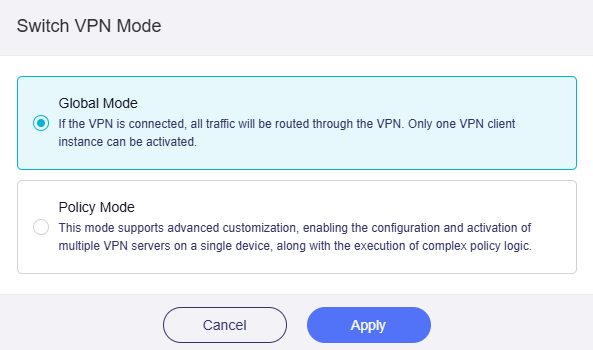
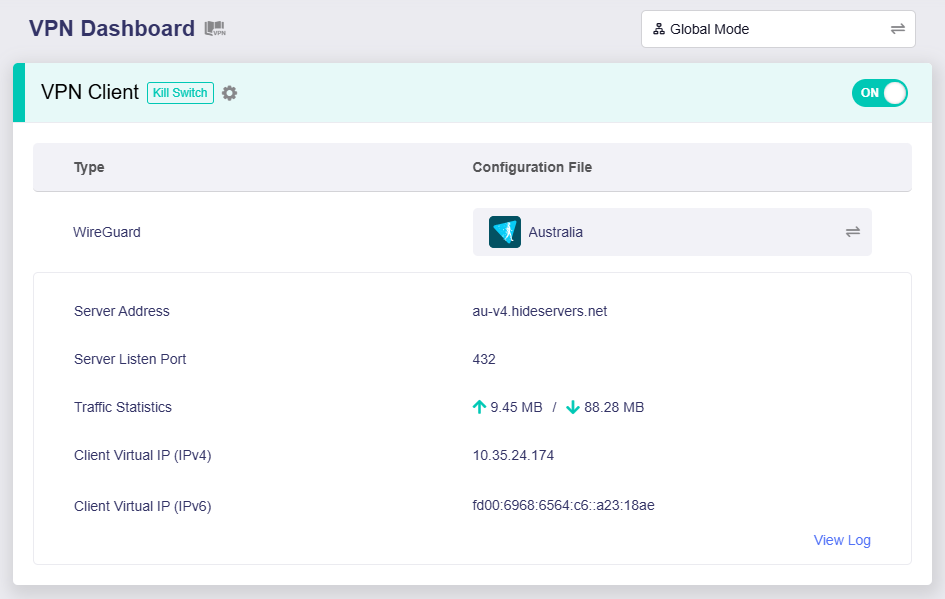
In the 4.8 VPN Dashboard, inspect Global versus Policy Mode before activating. Policy Mode can leave unmatched traffic on the ordinary WAN through All Other Traffic. The per-tunnel kill switch and unmatched-traffic setting are separate; decide what should be blocked rather than relying on a generic shield icon.
What you should see
The selected devices, destinations and failure behavior match your task. Do not disable a protection just to make a page load.
Activate the intended tunnel from the dashboard. From a device connected behind this router, try the authorized destination and, for an internet-exit profile, the expected exit. Reading the admin page on the router alone is not a client-routing check.
What you should see
The actual client uses the intended path. Keep local administration reachable before experimenting further.
Confirm the chosen client’s route and the dashboard state. Failure blocking needs its own controlled check; a connected icon does not prove the failure policy, IPv6 handling or every client’s path.
The model and 4.8 firmware scope match this guide.
The intended client device reaches its authorized destination.
You can explain tunnel failure blocking separately from unmatched traffic.
Local administration and a recorded rollback path remain available.
If it does not work
Separate profile problems from policy selection and intentional blocking before changing anything.
Router connects but a device bypasses it
Check that the device is actually behind this router and matches the Policy Mode rule. All Other Traffic can deliberately use WAN in firmware 4.8.
Internet stops when the tunnel stops
This may be the chosen kill-switch behavior. Consult the 4.8 tunnel and unmatched-traffic settings before changing them; restoring direct traffic changes the privacy boundary.
Controls do not match these screenshots
Check the firmware version. The 4.7 global Block Non-VPN Traffic control differs from 4.8. Use the matching vendor guide instead of guessing a similarly named setting.
Stop or roll back deliberately
Use the local admin panel to stop the specific tunnel and restore only the recorded mode/rules you changed. Keep intentional blocking if direct WAN traffic is unacceptable. If you choose to allow ordinary WAN traffic again, pause sensitive work first and verify the intended clients’ paths. Avoid factory reset or firmware changes as routine rollback.
 (opens in a new tab)
 (opens in a new tab)